1. Check in to the visit for the service user using the OneCare mobile app
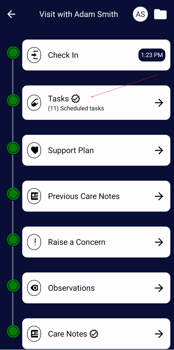
2. From the visit screen, select Tasks.
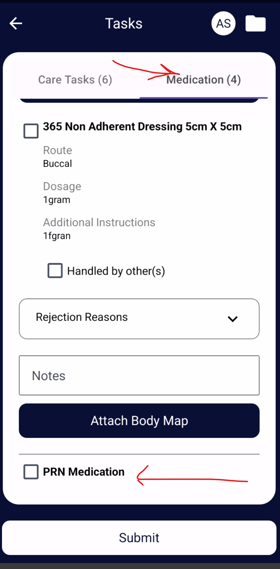
3.At the top of the Tasks screen, you will see two tabs:
- Care Tasks
- Medication
Scroll to the bottom of the medication list where you will see a PRN Medication checkbox.
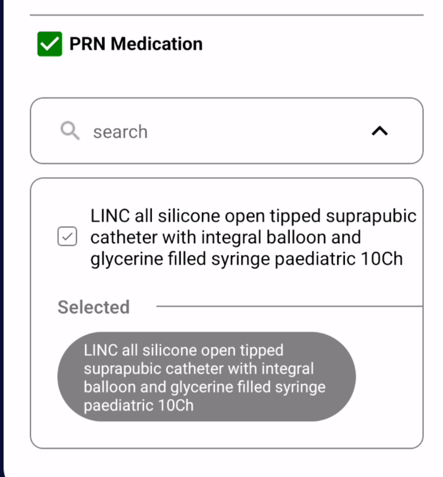
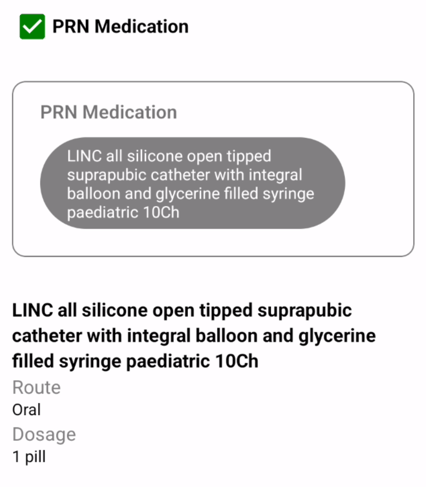
4. If a PRN medication has been administer during this visit , tick the PRN checkbox to open a dropdown of PRN meds assigned to this service user . From that dropdown , tick which meds have been given then close the drop down and submit
Important: Only select PRN medication that was actually administered to the service user during the visit.