
1. When logged into the mobile app, each shift is displayed as a visit card.
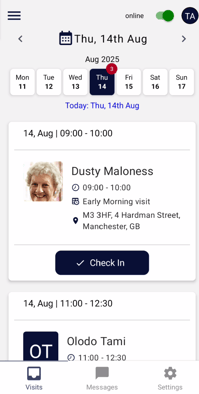
2. Once you check into a visit using the Check In button, four main tabs will appear: Tasks, Support Plan, Previous Care Notes, and Care Notes.
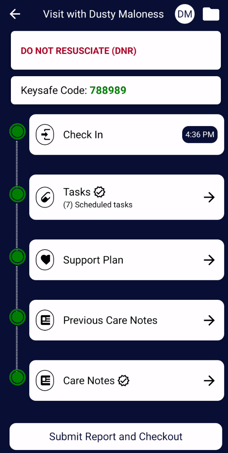
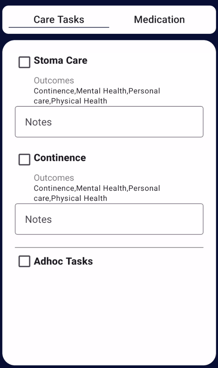
3. Tasks – This includes both care tasks and medication tasks.
-
Tick the checkbox next to a task or medication once completed.
-
Ad-hoc tasks can be added via the Ad-hoc dropdown.
-
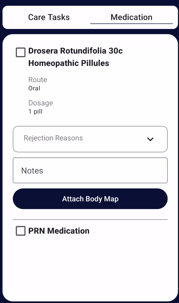
For medications, tasks must either be completed or have a rejection reason.
-
PRN medications can be added via the dropdown, and body maps can be attached if required.
-
Click Submit to save changes. The tick icon next to the tab will darken once saved. Changes can still be edited after saving.
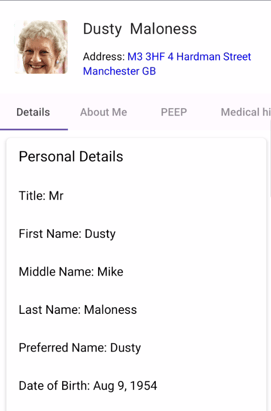
4. Support Plan – This is the section that shows all the Details , About Me , PEEP , Medication history , Routines , Risk management , Care Circle and Qualifications needed for caring for the person
5.Previous Care Notes – Displays all care notes from the client’s previous visits, from the current day up to one month prior to the visit date.
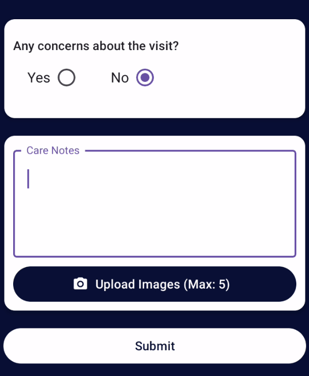
6. Care Notes – Used for recording notes specific to the current visit.
-
You can raise concerns or incidents by selecting Yes under “Any concerns about visit” and entering the concern details and type.
-
Images and body maps can also be attached here.
7. Once all tabs have been completed and the visit is ready to end, click Submit Report & Checkout from the visit’s home page