
1. In either the People Rota or the Client’s Personal Rota, click the three vertical dots (⋮) on the visit card and select Add Task from the list.
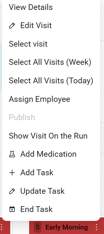
2. In the pop-up window, select the appropriate Service Name and Task Name from the dropdown menus;
- Choose the correct CSA Visit(s) that the task should be linked to.
- Specify whether the task should be completed on a daily or weekly basis.
- If the task is time critical, define the time window and set the allowed time tolerance for completion.
- To add another task to the same visit, click the Add Another Task button before saving.
3. Click on Save to apply these changes .
📝 Tasks will now be visible to staff assigned to that visit and included in the visit requirements.