
-
Navigate to the Rota
 section of the OneCare Platform.
 - In the People tab, use the search bar to find the person you need and review their scheduled visits to confirm all details are accurate and complete.
- Click the three vertical dots (⋮) on the visit card and select Assign Employee from the list:
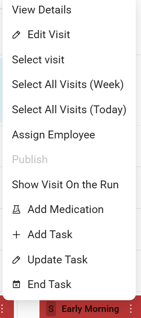
- Select From staff list pop up which staff would be best suited for the visit and click Assign. Staff must have sufficient availability and the required qualifications to be assigned to a visit successfully. The Visit should turn yellow
 to indicate it has been assigned.
 - When you are satisfied with the assignments, click the three vertical dots (⋮) again and select Publish. The Visit should turn green
 to indicate it has been published
📝 Only published visits are visible to carers in the OneCare mobile app. You can unpublish or modify these visits if needed prior to the visit start time..
📝Staff must have sufficient availability and the required qualifications to be assigned to a visit successfully. This includes meeting all training, certification, and compliance standards relevant to the type of care being provided, as well as ensuring there are no scheduling conflicts with other assignments. The system automatically checks availability and qualifications before confirming the assignment, helping to maintain the highest standards of care and safety for both staff and service users.